Initial Overview
Main screen
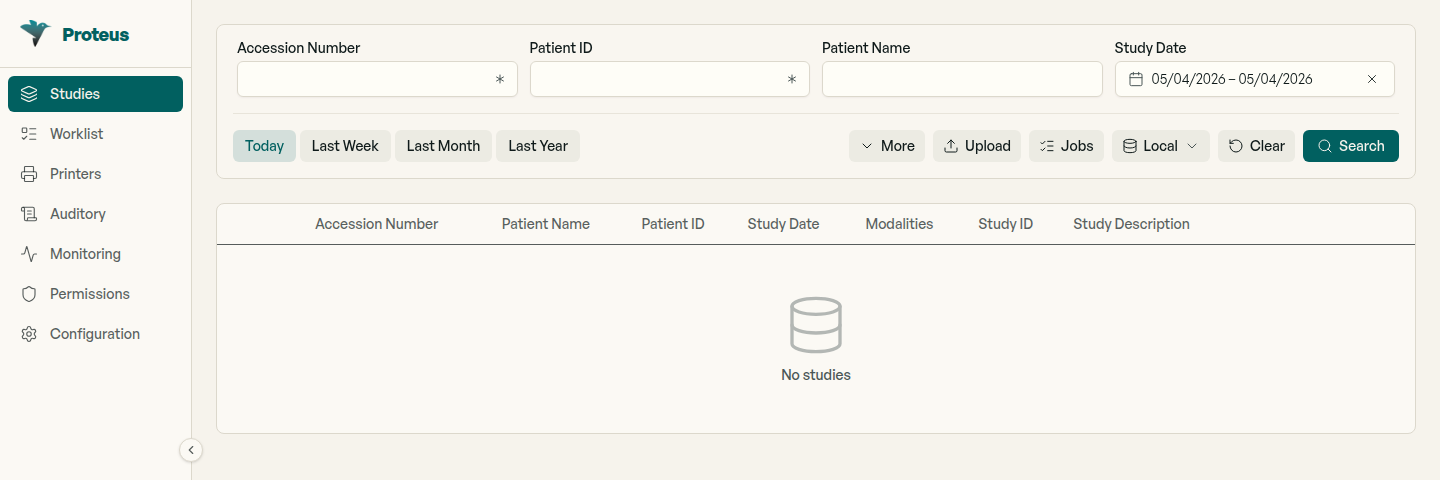
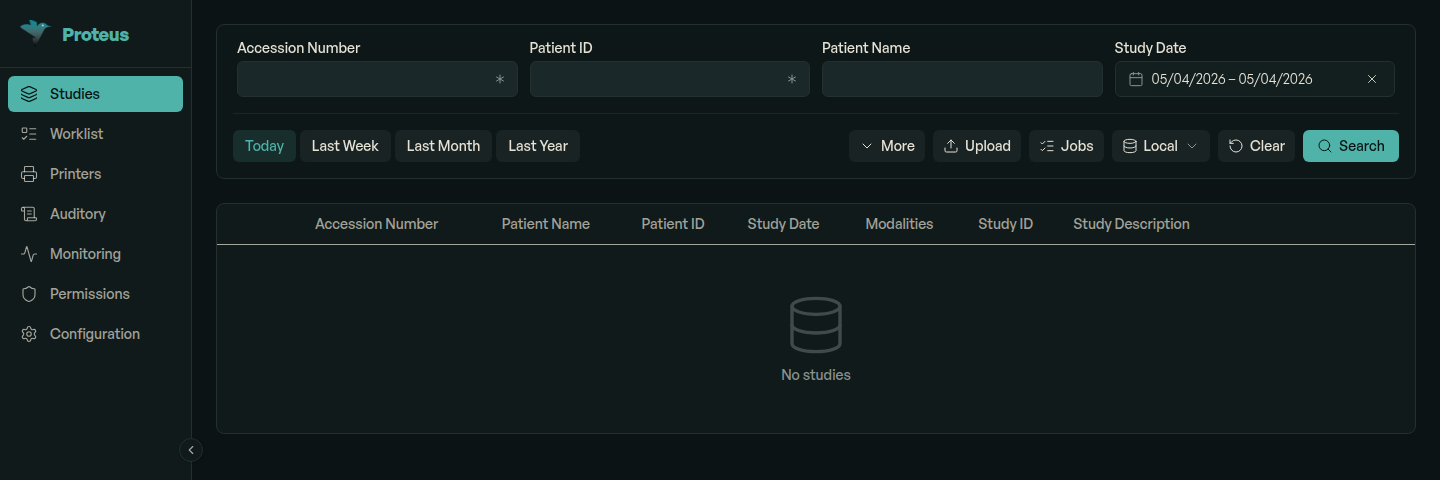
Some elements may not be available depending on the modules enabled by the license.
The screen is divided into two areas: the left sidebar with navigation and user menu, and the main content area on the right. If the license is expired or about to expire, a notice appears at the top of the content area.
User menu
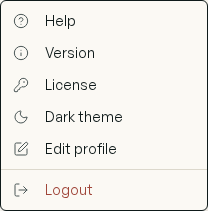
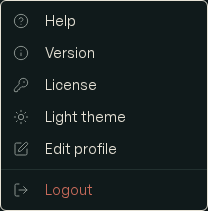
The user avatar sits at the bottom of the sidebar. It shows the user's initials (or the uploaded image) and on click opens a menu with the following options:
- Help: link to the PACS documentation.
- Version: window with the versions of the PACS DICOM libraries.
- License: shows the license data (customer, URL, software and hardware identifiers), days to expiration and enabled modules.
- Light theme / Dark theme: toggles between light and dark mode.
- Edit profile: opens the user account settings window.
- Logout: ends the active session.
For more information continue in User Menu.
Left sidebar
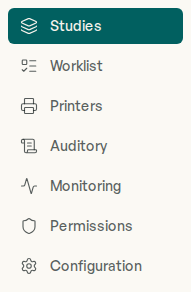
The sidebar can be collapsed or expanded with the arrow on its right edge; when collapsed only the module icons remain visible.
-
Studies: Main page that allows searching for studies and performing various actions such as viewing, editing, moving to other DICOM destinations, downloading ZIP, etc. For more information continue in Studies.
-
Worklist: Central work list that can connect to any DICOM medical equipment to automate patient/study loading and reduce manual entry errors. This page allows viewing and/or editing of queued studies. For more information continue in Worklist.
-
Printers: The system supports DICOM printing; both as a Print Server and as a client, from web viewers (Print Client). This page allows controlling print queues, viewing progress, resending and/or deleting tasks. For more information continue in Printers.
-
Auditory: The audit tool logs modifications and/or deletions of studies. For more information continue in Auditory.
-
Monitoring: The monitoring section lets you check system status. This section is divided into three tabs: incoming studies, nodes and logs. The nodes section displays real-time status of all PACS nodes (or services). The logs section shows the latest logs quickly through the web. For more information continue in Monitoring.
-
Permissions: This function leads to user permission administration, where access is determined by each user's role. It allows the creation of different users with privileges in different system areas. For more information continue in Permissions.
-
Configuration: Contains common configuration for all services. For service-specific configuration, the config.yaml file must be edited. For more information continue in Configuration.