Studies
This screen lists all stored studies. It allows searching, viewing, editing, downloading or moving (to other DICOM destinations) studies.


-
Filters for searching studies. Initially in compact mode; can be expanded with the More button.
-
Quick-access button group to select a date range. The options are Today, Last week, Last month and Last year.
-
Main action button group:
- More: shows additional filters for searching studies.
- Upload: allows uploading one or several DICOM files from the web.
- Jobs: opens the window with the status of jobs sending studies to other destinations.
- Local: the repository where studies are searched. By default the PACS repository (LOCAL) is selected. If a DICOM client is configured with the Archive option, the remote repository's studies can be accessed via DICOM query and retrieve.
- Clear: clears the current search.
- Search: executes the search using the selected filters.
-
List of found studies.
Study identifiers
- Accession Number (0008, 0050)
- Patient Name (0010, 0010)
- Patient ID (0010, 0020)
- Study Date (0008, 0020)
- Modalities (0008, 0060)
- Study ID (0020, 0010)
- Study Description (0008, 1030)
- Institution Name (0008, 0080)
- Referring Physician (0008, 0096)
- Station Name (0008, 1010)
- Study Instance UID (0020, 000D)
Study list
Shows all filtered studies.


-
Study description:
-
Status icon: There is no way to ensure that all images of a study have arrived using only the DICOM STORE-SCP protocol. If a study receives an image, it is considered unstable for a set period since more images may arrive. Because it is unstable, modifications to it are not recommended.
A study's status icons are the following:
- Gray circle (Receiving): The study is receiving images and is still considered unstable.
- Green circle (Complete): The study is stable.
- Red circle (Error): The study has duplicated IDs, so it is considered erroneous and must be corrected.
- Green archive box (Backed up): The study was backed up to a backup storage.
- Blue key (Key object): The study contains a Key Object (KO), that is, it includes the KO modality among its modalities. If the KO was created from the viewer, the tooltip also shows the user who generated it. For more information continue in Key Objects (KO).
- Blue cloud (Sent to gateway): The study was forwarded by a gateway.
A single study can show several icons at once. For example, a study that is complete, backed up and already forwarded will show the three corresponding icons. Hovering over each icon shows its description.
Studies are considered duplicated when their images share the same identifiers (Study Instance UID, Series Instance UID and SOP Instance UID) but have different patient identifiers (Patient ID). This means the two studies were generated in the same equipment but with different patient data. The PACS cannot determine which is the correct patient.
- Arrow icon: Shows the list of all series for the study.
-
-
Main study identification fields. Clicking this section opens the viewer for the study.
-
Generates a link to share the study with other users for a given time. The time can be chosen at link creation. Default is 5 days.
-
Allows downloading the entire study in a compressed ZIP file.
-
Option to edit the study.
-
Send the study via the STORE-SCU protocol to another DICOM client.
Study edition
Study editing is split into three modules: patient, study and series. Study modifications are saved per part and each level has its own options. If the study is very large, it may take some time.
It is not allowed to delete or modify original patient, study, series or image data of a study that contains active Key Objects (KO), to avoid inconsistencies in the references.
If you need to make changes or remove original data, you must first delete the Key Objects (KO) associated with the study from the viewer. Once the KOs are removed, edit and delete options will be enabled again.
Patient edition
This section allows modifying the patient data of the selected study. To edit fields, click on them and press enter. After making a change, the SAVE button is enabled to apply all changes.
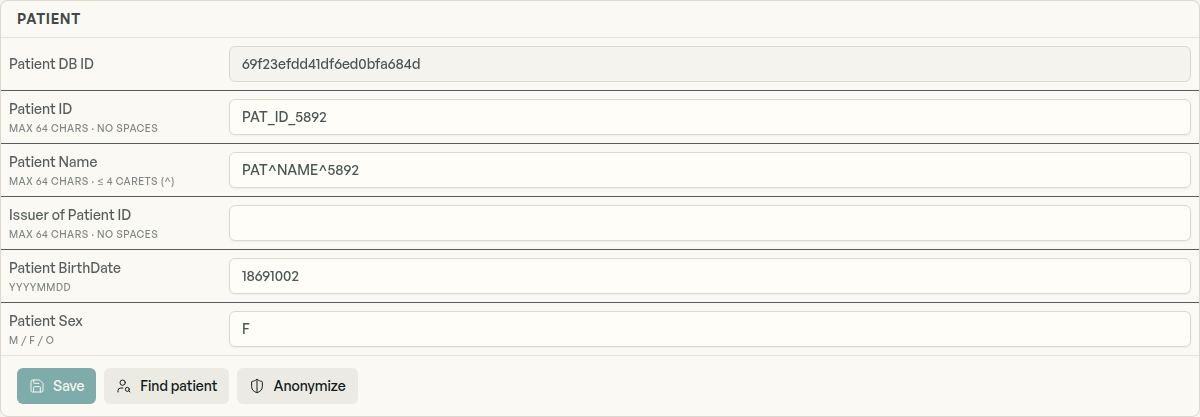
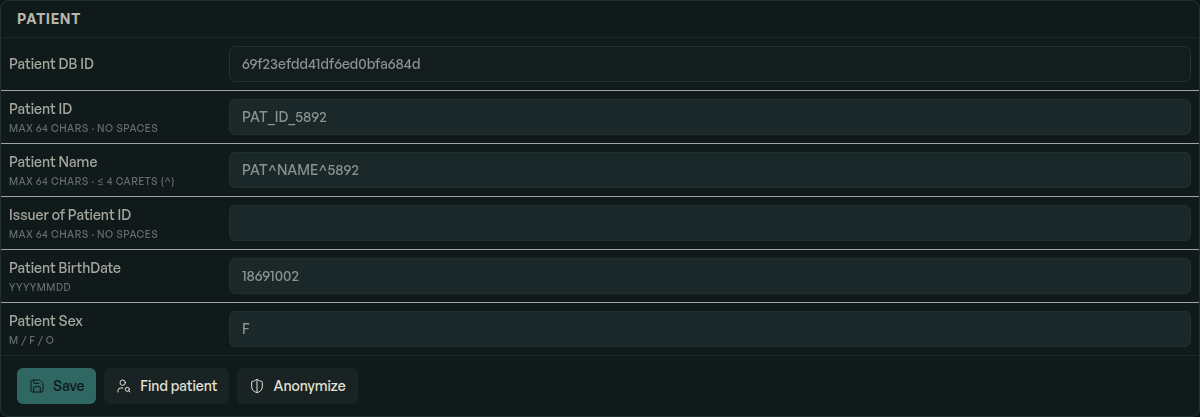
- Save: applies only patient-level modifications.
- Find patient: allows assigning an existing PACS patient to the study instead of typing the data by hand. Explained in detail below.
- Anonymize: modifies the patient data so it cannot be identified.
The Patient DB ID value cannot be modified, as it is assigned automatically by the system.
Find patient
This window reassigns the study to a patient that already exists in the PACS, copying their data into the study instead of typing it by hand. This avoids typing errors and prevents the same patient from ending up with different data on each study.
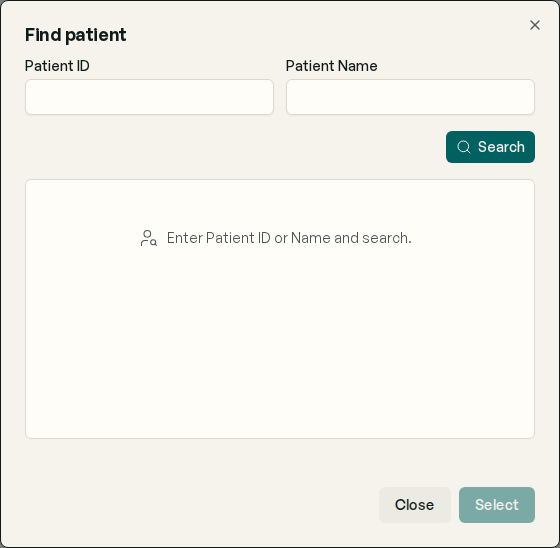
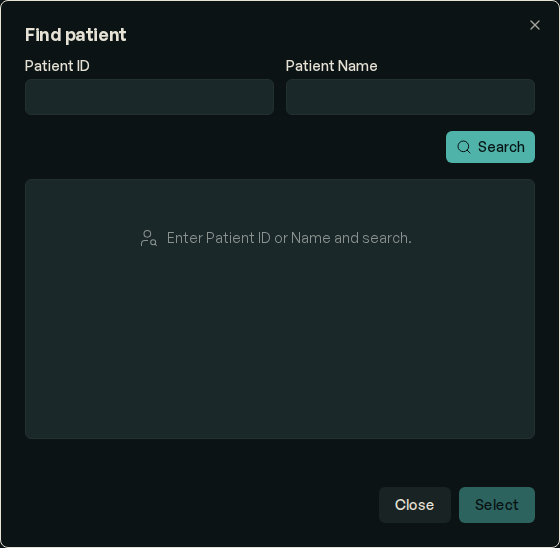
The window shows no patients when it opens: the list starts empty with the message "Enter Patient ID or Name and search.". A search must be performed for any results to load.
-
Fill in Patient ID and/or Patient Name. Both fields are optional, but the search still has to be run; if they are left empty, the first PACS patients are listed unfiltered.
-
Click Search, or press Enter from either field. The search is partial: the text entered is matched anywhere within the field, so the full value does not need to be typed.
-
Select a patient from the list by clicking on it. Each result shows the name and, below it, the patient ID together with the sex and the birth date.
-
Confirm with the Select button, which stays disabled until a patient is selected. A result can also be double-clicked to select it and close the window in a single step.
The chosen patient's data is loaded into the patient section fields, but is not applied yet: to confirm the change, Save must be pressed. The Close button discards the operation.
The search returns at most the first 50 results, as indicated by the message at the bottom of the list. If the patient being looked for does not appear, narrow the search with a more specific ID or name.
Study edition
This section allows modifying the study data. To edit fields, click on them and press enter. After making a change, the SAVE button is enabled to apply all changes.
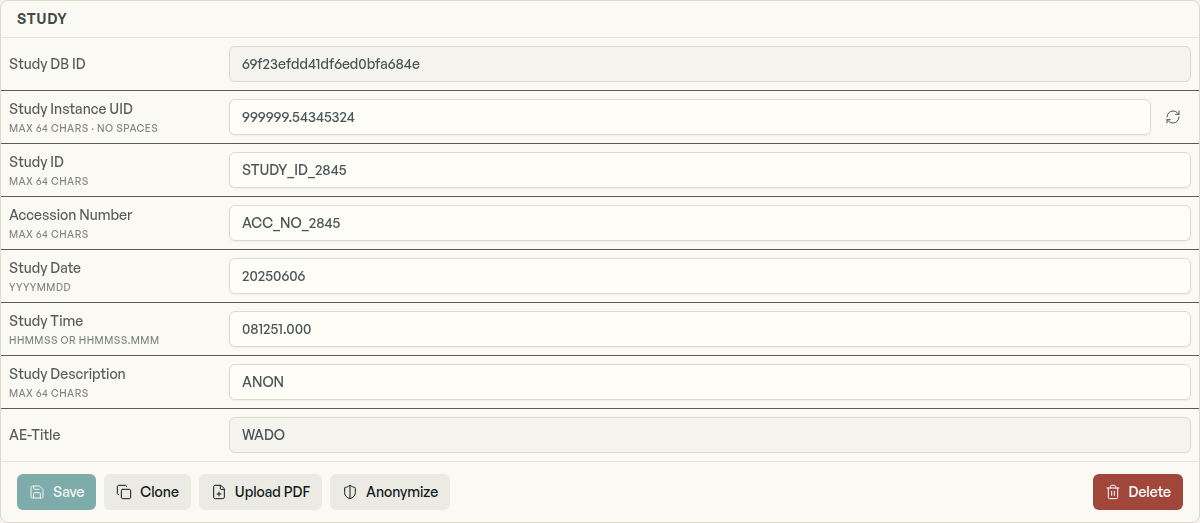
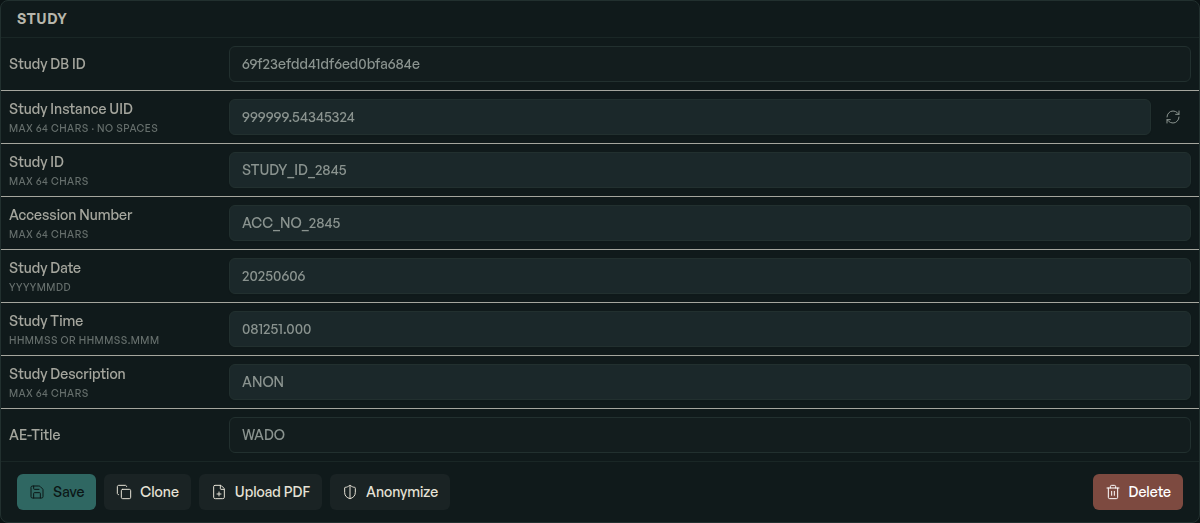
- Save: applies only study-level modifications.
- Clone: copies the entire study with a new Accession Number.
- Upload PDF: allows dicomizing a PDF and saving it to the study. Transforms a PDF into a DICOM instance as encapsulated PDF and adds it as a new series of the study.
- Anonymize: modifies the study data so it cannot be identified.
- Delete: removes the entire study.
The Study DB ID and AE-Title values cannot be modified, as they are assigned automatically by the system.
Series edition
This section allows modifying series data. To edit fields, click on them and press enter. After making a change, the SAVE button is enabled to apply all changes.
Below the Series section is the Images section with the preview of the images for the selected series. They can be navigated with the lower arrows and deleted with the Delete button at the bottom of the section.
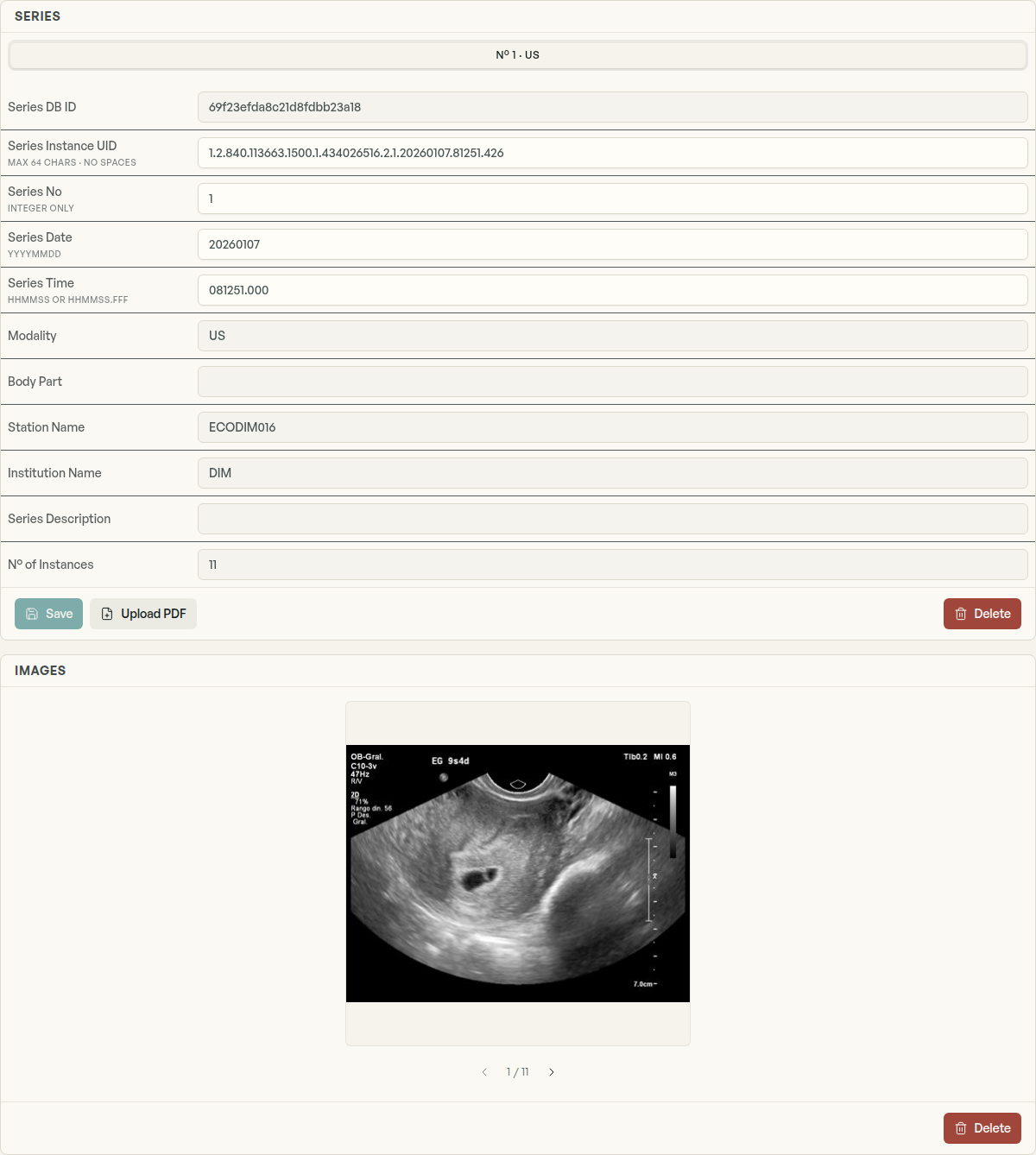
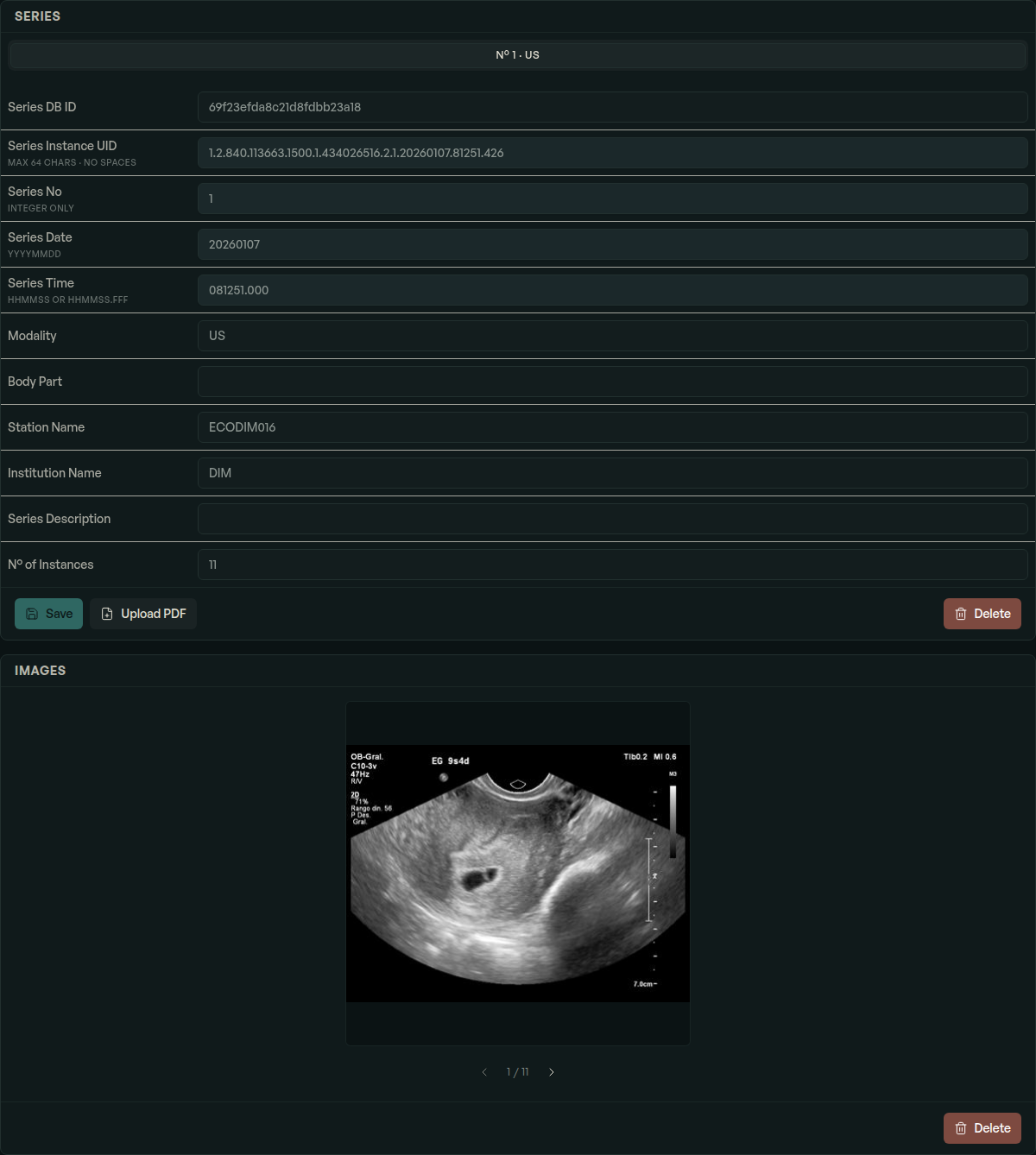
- Save: applies only series-level modifications.
- Upload PDF: allows dicomizing a PDF and saving it to the series. Transforms a PDF into a DICOM instance as encapsulated PDF and adds it to the selected series.
- Delete: removes the series.
Only Series Instance UID, Series No, Series Date and Series Time values can be modified.