Security
By default, MongoDB is configured to accept connections only from the local machine (localhost). This restricts access so only applications running on the same server can connect to the database.
It is always recommended to add an administrator user, especially if you want to allow remote connections to the database.
Client
Windows
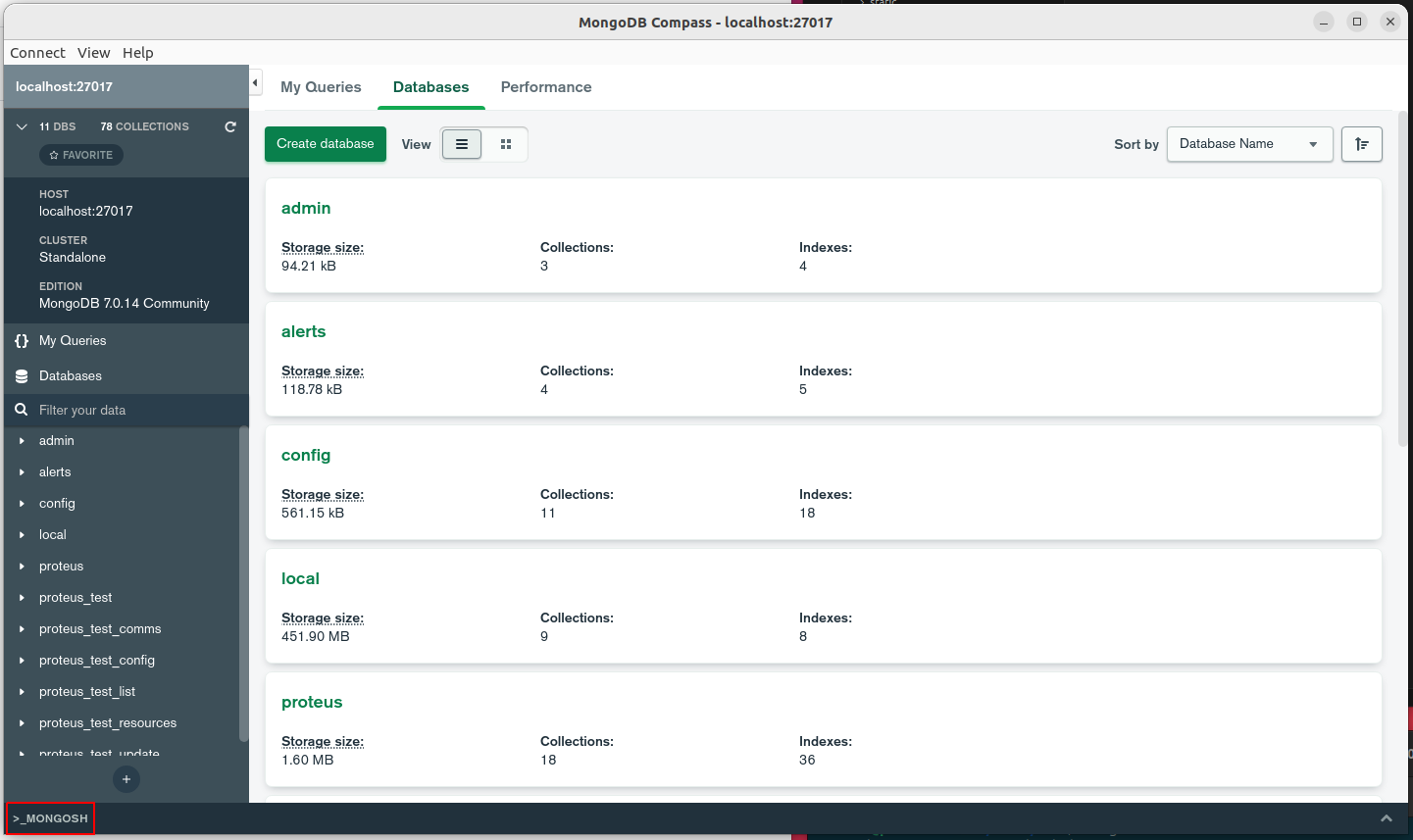
On Windows, you can access MongoDB using the MongoDB Compass GUI by clicking _MONGOSH.
Linux
On Linux, you can access MongoDB from the console with:
mongosh
Add user
First, switch the current database context to the admin database. This database manages users and roles.
use admin
Next, create the administrator user with all privileges. In this example, a user called 'admin' is created with password 'admin'. Do not use these credentials in production; they are only an example.
 db.createUser({
    user: "admin",
    pwd: "admin",
    roles: [
      { role: "readWriteAnyDatabase", db: "admin" },
    	{ role: "userAdminAnyDatabase", db: "admin" },
    	{ role: "clusterAdmin", db: "admin" },
    	{ role: "restore", db: "admin" },
    	{ role: "backup", db: "admin" }
    ]
 })
Roles and their functions:
- readWriteAnyDatabase: Allows a user to read and write all databases on the server.
- userAdminAnyDatabase: Allows a user to manage users and roles in all databases on the server.
- clusterAdmin: Allows a user to manage configuration and perform administrative tasks for a cluster.
- restore: Allows a user to restore data into the database from a backup file.
- backup: Allows a user to create a backup file of the database.
Enable authentication
To enable MongoDB authentication, edit the configuration file mongod.conf.
Change the following line:
#security
to:
security:
  authorization: "enabled"
The service must be restarted for the change to take effect.