Initial Setup
Once installed, and if the path was not changed during installation, PACS files are located at C:\Program Files\Proteus on Windows and /usr/local/proteus on Ubuntu.
- Open the URL http://localhost:8080.
If you can't access the application, verify that the proteus service is running correctly. If the service is not running, check the main.log file in the logs folder in the application's root directory.
- Use the default administrator user:
- Username: admin
- Password: admin
- With no license, the message License has expired! appears in the top bar. This means the PACS service is running correctly but requires a valid license to enable all features.


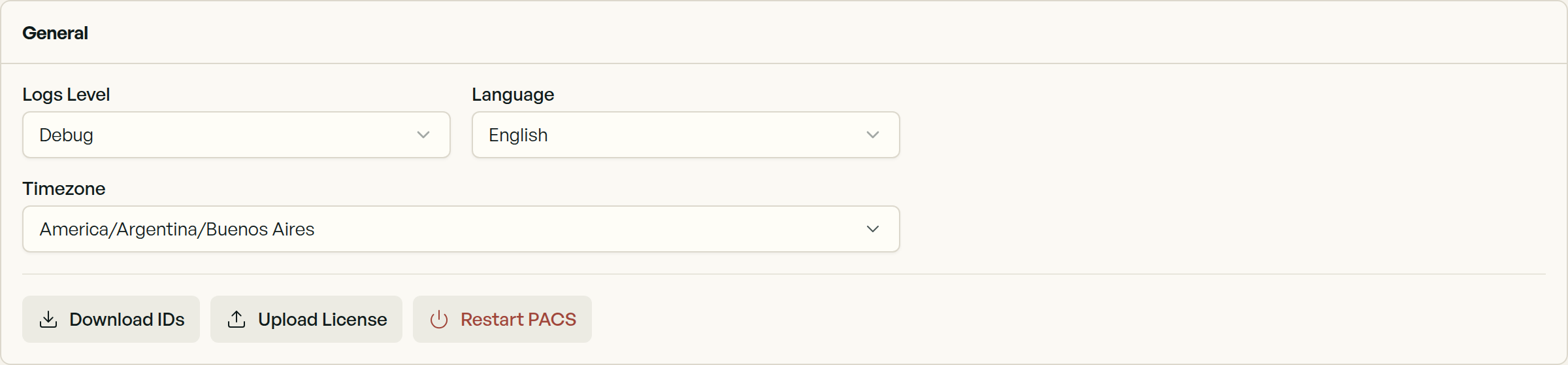
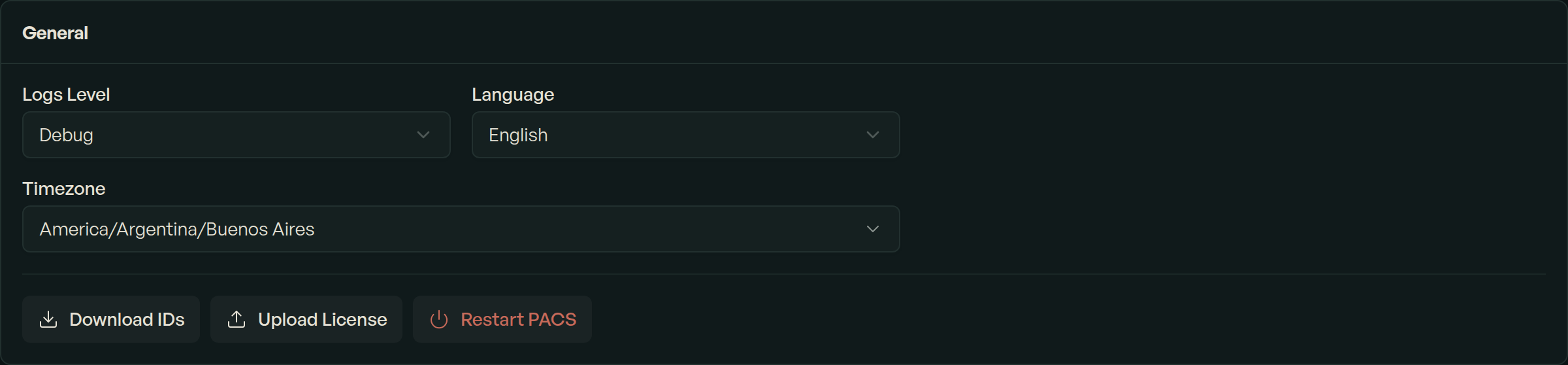
- If you already have a valid license, go to the MAIN tab on the configuration page and upload the license with the UPLOAD LICENSE button. For the change to take effect, restart the service with the RESTART PACS button.
Once the license is installed correctly, the PACS can be used. By default, the DICOM service is available on port 11112 with AE-Title PROTEUS. Images are saved in the storage folder.
The license can be loaded manually by copying the license.dat file to the application's root directory.
There are two places to configure the service. Service-specific configuration is in the config.yaml file in the application's root directory and is only applied on restart. Shared configuration across all nodes is available via web access.